

Microsoft Word and Excel are powerful tools for creating and managing documents and data. Often, you may need to extract links from a Word document and transfer them to an Excel spreadsheet for various purposes, such as link tracking, data analysis, or link management. This article will guide you through various methods to convert Word links to Excel, covering both manual and automated approaches.
Why Convert Word Links to Excel?
Before diving into the methods, let’s explore the reasons why you might want to convert Word links to Excel:
- Link Tracking: Excel provides a structured environment for tracking and managing links. You can add columns to monitor the status of each link, such as whether it is active, broken, or needs updating.
- Data Analysis: By importing links into Excel, you can analyze them using various Excel functions and tools. For example, you can categorize links by type, identify patterns, or calculate statistics.
- Link Management: Excel can serve as a centralized repository for all your links, making it easier to organize, update, and share them with others.
- Automation: Once the links are in Excel, you can automate tasks such as checking link validity, generating reports, or creating dynamic dashboards.
- Collaboration: Excel spreadsheets are easy to share and collaborate on, allowing multiple users to work on the same set of links simultaneously.
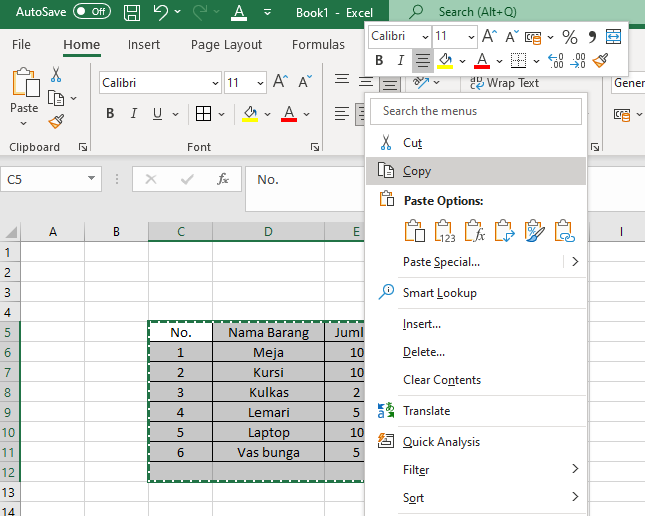
Methods to Convert Word Links to Excel
There are several methods to convert Word links to Excel, each with its own advantages and disadvantages. Let’s explore some of the most common approaches:
1. Manual Copy-Pasting
The simplest method is to manually copy and paste links from Word to Excel. This approach is suitable for small documents with a limited number of links.
Steps:
- Open the Word document containing the links.
- Highlight the first link you want to convert.
- Press
Ctrl+C(orCmd+Con Mac) to copy the link. - Open the Excel spreadsheet where you want to paste the link.
- Select the cell where you want to paste the link.
- Press
Ctrl+V(orCmd+Von Mac) to paste the link. - Repeat steps 2-6 for each link in the Word document.
Advantages:
- Simple and straightforward.
- No additional tools or software required.
Disadvantages:
- Time-consuming for large documents with many links.
- Prone to errors if not done carefully.
- Not suitable for automated tasks.
2. Using Word’s "Copy Hyperlink" Feature
Word provides a built-in feature to copy the hyperlink address directly, which can be useful when you only need the URL and not the surrounding text.
Steps:
- Open the Word document containing the links.
- Right-click on the hyperlink you want to copy.
- Select "Copy Hyperlink" from the context menu.
- Open the Excel spreadsheet where you want to paste the link.
- Select the cell where you want to paste the link.
- Press
Ctrl+V(orCmd+Von Mac) to paste the link. - Repeat steps 2-6 for each link in the Word document.
Advantages:
- Faster than manually copying and pasting the entire link.
- Ensures that you only copy the URL.
Disadvantages:
- Still requires manual effort for each link.
- Not suitable for automated tasks.
3. Using Word’s "Save As" Feature with Text Format
This method involves saving the Word document as a plain text file and then importing it into Excel. This can be useful for extracting all the text, including links, in a structured format.
Steps:
- Open the Word document containing the links.
- Click "File" > "Save As".
- In the "Save as type" dropdown, select "Plain Text (*.txt)".
- Choose a location to save the text file and click "Save".
- Open Excel and click "File" > "Open".
- Select the text file you just saved.
- The Text Import Wizard will appear. Follow the wizard’s instructions to import the data into Excel. You may need to specify the delimiter (e.g., tab, comma, space) to separate the links from the surrounding text.
Advantages:
- Extracts all text, including links, in a structured format.
- Can be faster than manual copy-pasting for large documents.
Disadvantages:
- Requires using the Text Import Wizard, which can be complex for some users.
- May require additional cleaning and formatting to separate the links from the surrounding text.
4. Using VBA (Visual Basic for Applications) Macro
For more advanced users, VBA macros provide a powerful way to automate the process of extracting links from Word and transferring them to Excel.
Steps:
- Open the Word document containing the links.
- Press
Alt+F11to open the VBA editor. - In the VBA editor, click "Insert" > "Module".
- Paste the following VBA code into the module:
Sub ExtractLinksToExcel()
  Dim objWord As Object, objExcel As Object
  Dim objDoc As Object
  Dim objLink As Object
  Dim i As Integer, j As Integer
  Dim strExcelFile As String

  ' Create Word and Excel objects
  Set objWord = GetObject(, "Word.Application")
  Set objDoc = objWord.ActiveDocument
  Set objExcel = CreateObject("Excel.Application")

  ' Set Excel file path
  strExcelFile = "C:PathToYourExcelFile.xlsx" ' Change this to your desired file path

  ' Create a new workbook or open an existing one
  On Error Resume Next
  Set objWorkbook = objExcel.Workbooks.Open(strExcelFile)
  If Err.Number <> 0 Then
    Set objWorkbook = objExcel.Workbooks.Add
  End If
  On Error GoTo 0

  ' Make Excel visible
  objExcel.Visible = True

  ' Set the worksheet
  Set objWorksheet = objWorkbook.Sheets(1)

  ' Loop through each hyperlink in the Word document
  i = 1
  For Each objLink In objDoc.Hyperlinks
    objWorksheet.Cells(i, 1).Value = objLink.TextToDisplay
    objWorksheet.Cells(i, 2).Value = objLink.Address
    i = i + 1
  Next objLink

  ' Clean up objects
  Set objLink = Nothing
  Set objDoc = Nothing
  Set objWord = Nothing
  Set objWorksheet = Nothing
  Set objWorkbook = Nothing
  Set objExcel = Nothing
End Sub- Modify the
strExcelFilevariable to specify the path to your Excel file. - Press
F5to run the macro.
Explanation of the VBA Code:
- The code creates objects for Word and Excel.
- It opens the active Word document and either creates a new Excel workbook or opens an existing one.
- It loops through each hyperlink in the Word document and extracts the display text and address (URL).
- It writes the display text and address to columns A and B of the Excel worksheet, respectively.
Advantages:
- Automates the process of extracting links.
- Can handle large documents with many links efficiently.
- Provides flexibility to customize the extraction and formatting process.
Disadvantages:
- Requires knowledge of VBA programming.
- May require troubleshooting if the code encounters errors.
- Security concerns related to running macros from unknown sources.
5. Using Third-Party Tools
Several third-party tools are available that specialize in extracting data from Word documents, including links. These tools often provide advanced features such as batch processing, link validation, and data transformation.
Examples of Third-Party Tools:
- Aspose.Words: A powerful library for working with Word documents programmatically.
- DocParser: An online tool for extracting data from documents.
- PDFelement: A PDF editor that can also extract data from Word documents.
Advantages:
- Often provides advanced features and capabilities.
- Can handle complex document structures and formats.
- May offer batch processing and automation options.
Disadvantages:
- May require purchasing a license or subscription.
- May have a learning curve associated with using the tool.
- Security concerns related to uploading documents to third-party services.
Tips for Converting Word Links to Excel
Here are some tips to ensure a smooth and efficient conversion process:
- Clean up the Word document: Before converting, clean up the Word document by removing any unnecessary formatting or text that might interfere with the extraction process.
- Use consistent formatting: Use consistent formatting for links throughout the document to make it easier to extract them.
- Test the links: After converting, test the links in Excel to ensure they are working correctly.
- Use a dedicated worksheet: Create a dedicated worksheet in Excel for the extracted links to keep them separate from other data.
- Back up your files: Always back up your Word and Excel files before making any changes to them.
Conclusion
Converting Word links to Excel can be a valuable task for various purposes, such as link tracking, data analysis, and link management. This article has explored several methods to accomplish this, ranging from manual copy-pasting to automated VBA macros and third-party tools. The best method for you will depend on your specific needs, technical skills, and budget. By understanding the advantages and disadvantages of each method, you can choose the most appropriate approach for your situation. Remember to clean up your Word document, use consistent formatting, and test the links after converting to ensure a smooth and efficient process.